How to Test a Gemini API Key Response Without Writing a Single Line of Code in Under 1 Minute
Learn how to test your Gemini API key instantly in a browser — no terminal, no code, no Postman. Verify credentials, inspect responses, and diagnose errors in under 60 seconds.
Published July 10, 2026
# How to Test a Gemini API Key Response Without Writing a Single Line of Code in Under 1 Minute
Testing a Gemini API key should not require a terminal, a Postman collection, or a custom script. You should be able to paste the key into a prepared request, send a simple prompt, and immediately see whether Google accepts the credential and returns a valid response.
This guide explains the complete process: what Gemini is, how to generate and secure an API key, how to test it from a desktop or mobile browser, how to interpret the response, how to diagnose common errors, and how to switch between Gemini models without creating a new key.
#What Is Gemini? A Quick Picture of Google's Multimodal AI Family
Gemini is Google's family of artificial intelligence models. It was designed as a multimodal system, meaning it can work with more than plain text. Depending on the model and endpoint, Gemini can process or generate combinations of text, images, audio, video, code, and structured data.
Gemini is not a single model. Google provides multiple versions for different workloads:
- Flash models balance speed, intelligence, multimodal understanding, coding capability, and production usability. They are usually the best starting point for chatbots, workflow automation, document analysis, and general API testing.
- Flash-Lite models prioritize lower cost and high throughput. They are useful for classification, extraction, translation, summarization, simple assistants, and applications that process a large number of requests.
- Pro models prioritize deeper reasoning, complex coding, data synthesis, difficult multimodal analysis, and more advanced agentic workflows. They may require paid access and can have different quotas from Flash models.
- Deep Think models are designed for highly difficult mathematics, science, engineering, research, and advanced problem-solving. Availability is more restricted and may be limited to Google AI Ultra users or selected API partners.
The important detail is that every Gemini model can have its own availability, pricing, rate limits, supported inputs, request schema, and response behavior. A valid API key may work perfectly with a Flash model but fail with a Pro, preview, image, audio, or agent model.
That does not automatically mean the key is broken. It may mean the selected model is unavailable to the project, billing is required, a quota has been reached, the model ID is outdated, or the request body is incompatible with that model.
Gemini is available through Google's REST API, so any compatible programming language, application, automation platform, or browser-based API tester can send requests to it. For a basic test, you only need four things:
- A valid Gemini API key.
- A currently available model ID.
- A correctly formatted request.
- A simple prompt that makes it easy to recognize a successful response.
#How to Generate a Gemini API Key in Google AI Studio
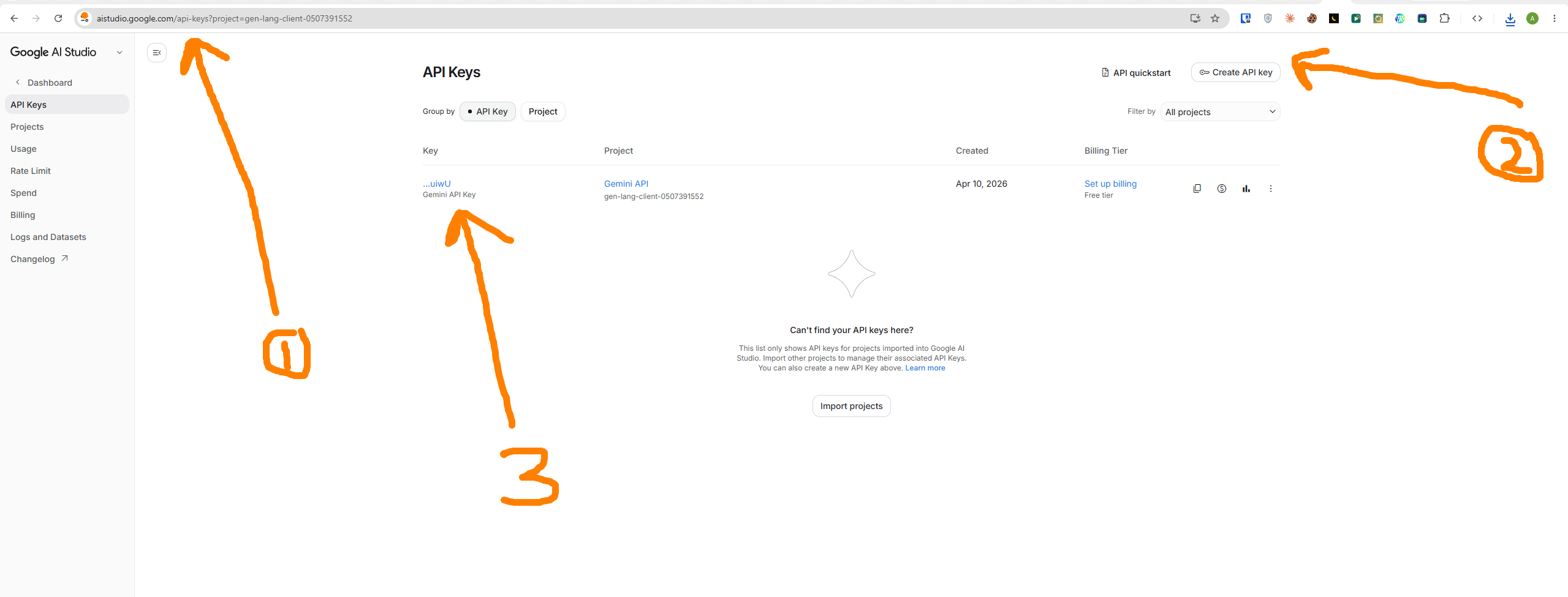
Creating a Gemini API key usually takes only a few minutes, and a credit card is not normally required for an initial free-tier test.
#1. Open Google AI Studio
Go to Google AI Studio and sign in with the Google account you want to use for the project.
After signing in, open the API-key area from the left sidebar by selecting Get API Key.
#2. Create the API Key
Select Create API Key. Google may let you create a new Google Cloud project or connect the key to an existing project.
The project selection matters because access and limits are associated with the Google Cloud project rather than only with the visible key string. A project with billing enabled may receive access to more models, higher rate limits, or paid-tier features. A project without billing can still be suitable for testing, but free-tier availability and quotas are more limited.
Free-tier limits vary by model and can change over time. Earlier examples included limits such as approximately 15 requests per minute for a Flash model and around 2 requests per minute for a Pro model. Always check Google's current rate-limit documentation before treating those values as permanent.
#3. Copy the Key Immediately
Copy the key as soon as Google displays it. A Gemini API key commonly appears as a long alphanumeric value beginning with a pattern similar to:
AIzaSy...A different format may indicate that you copied another credential type instead of the expected API key.
Store the key in a password manager or another secure secret-management location. Do not place it in:
- A public GitHub repository.
- A screenshot or tutorial image.
- A public URL.
- Slack, Notion, or another broadly shared workspace.
- A
.envfile that is not excluded through.gitignore.
AI Studio API keys are Google Cloud credentials. If a key is committed to a public repository, Google's secret-scanning systems may detect and revoke it. That protection is useful, but an automatic revocation can also cause a live application to fail unexpectedly. Securing the key before development begins is safer than replacing it after exposure.
#How to Test a Gemini API Key Without Writing Code
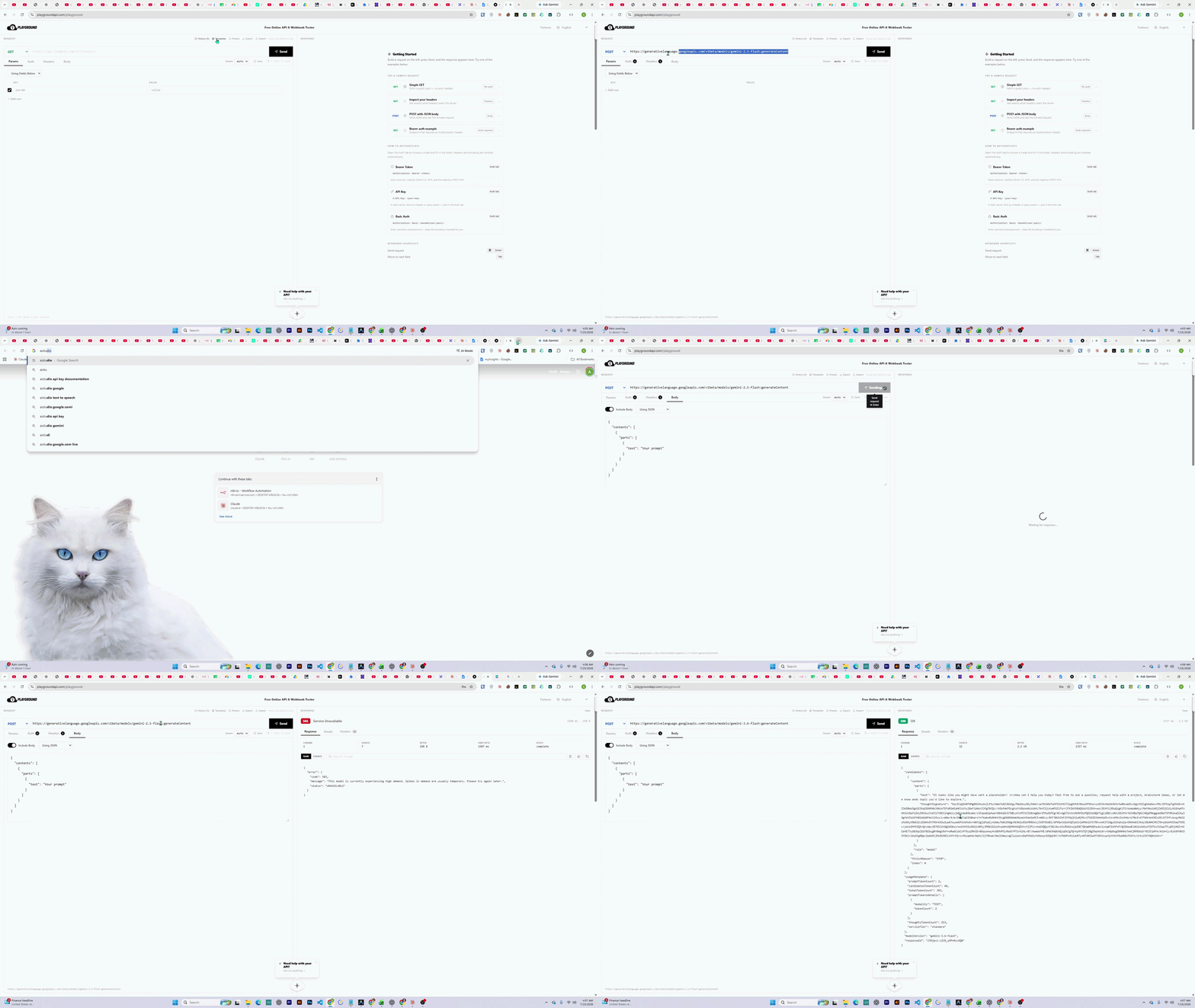
A browser-based tester is the fastest way to confirm whether the key works before integrating it into an application.
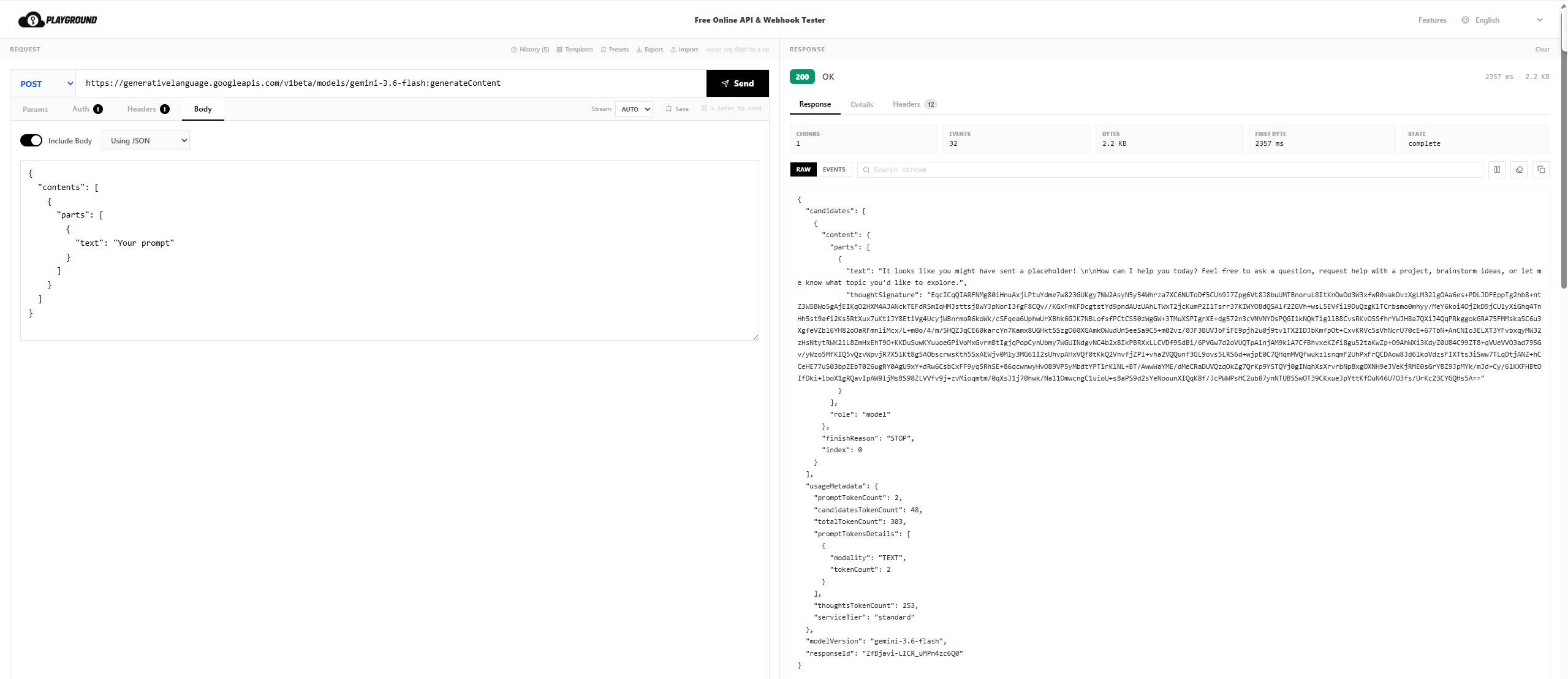
With the prepared Gemini request in PlaygroundAPI.com, the endpoint, request method, headers, and JSON body are already structured for a basic Gemini request. You only need to provide the credential and prompt.
#Step-by-Step Testing Process
- Open PlaygroundAPI.com in your browser.
- Select the pre-built Gemini API template.
- Paste the Gemini API key into the designated key field.
- Start with a currently supported Flash model.
- Enter a simple prompt, such as:
text Reply exactly: Gemini API key working
- Send the request.
- Check the HTTP status, generated text, model information, token usage, finish reason, and any safety data returned by Google.
A successful request confirms more than the existence of the key. It confirms that Google accepted the credential, the project can access the chosen model, the endpoint is reachable, and the request body is valid enough to generate content.
#Testing From a Mobile Phone
You do not need to be at a desktop computer to verify a Gemini key. The same request can be tested from a mobile browser without installing an application or typing a curl command on a touchscreen keyboard.
A practical mobile workflow is:
- Open PlaygroundAPI.com in Safari, Chrome, or another modern mobile browser.
- Choose the Gemini template.
- Paste the key.
- Enter a short prompt.
- Send the request and inspect the response.
This is useful for freelancers, agencies, clients, founders, and support teams. A developer can verify a client's credential before starting an integration, while a client can confirm that a newly delivered key works before sharing it with an internal development team.
The responsive interface allows you to switch models, view raw JSON, and examine errors from a phone or tablet. A simple credential check should not require access to a laptop.
#How the API Key Is Handled During the Test
The API-key field is designed as a client-side input. According to the described PlaygroundAPI.com workflow, the credential is sent from the browser to the API provider rather than being stored in a PlaygroundAPI.com database. Closing the tab removes the entered value from that session.
This architecture matters because every external tester creates a trust decision. A tool that permanently stores API keys creates a larger security risk than a temporary browser-based request. You should still use a dedicated development key, apply restrictions, monitor usage, and rotate any credential you suspect has been exposed.
#What a Valid Gemini API Response Looks Like
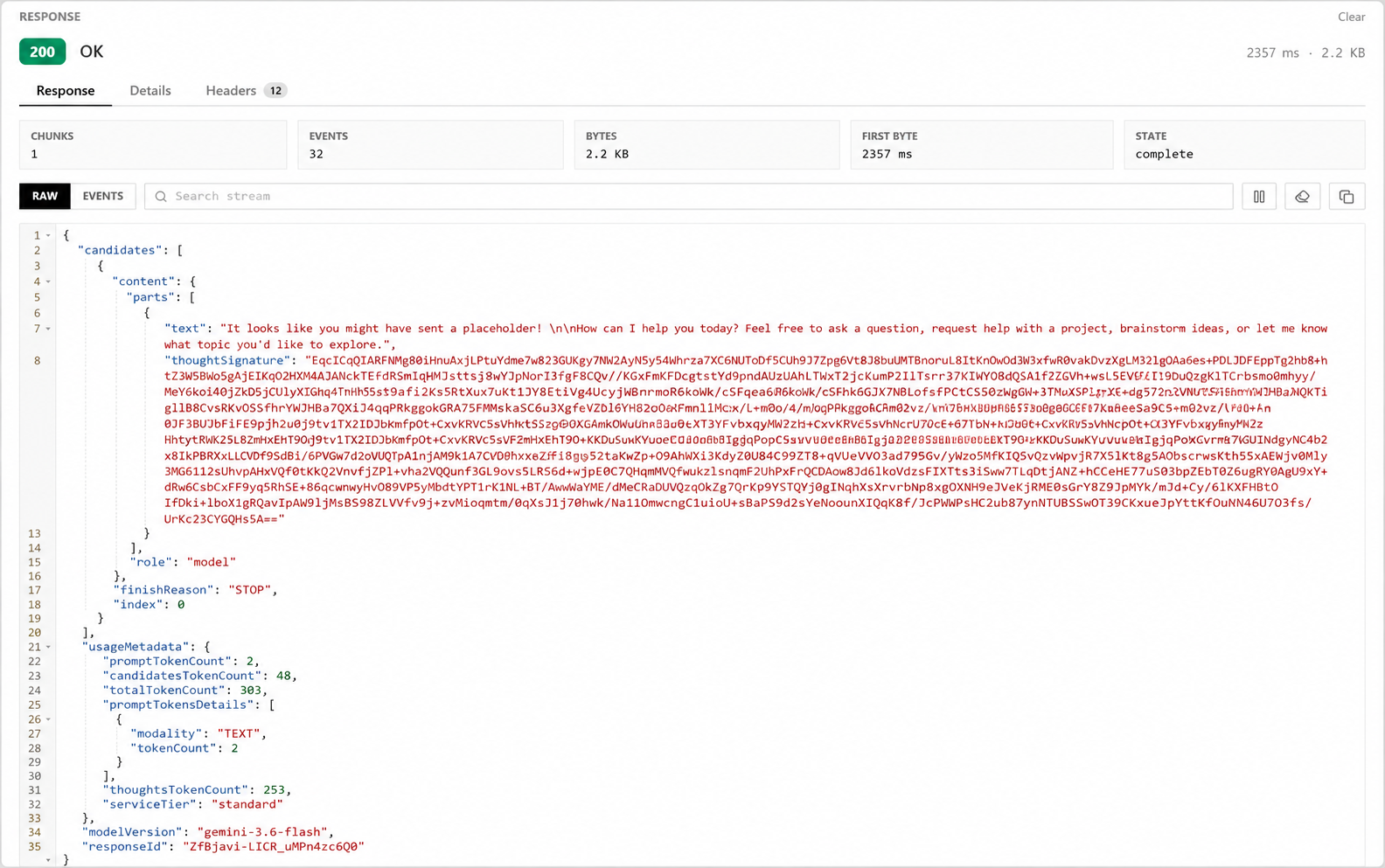
A successful basic text-generation response can look similar to the following:
{
  "candidates": [
    {
      "content": {
        "parts": [
          {
            "text": "Hello! How can I help you today?"
          }
        ],
        "role": "model"
      },
      "finishReason": "STOP",
      "index": 0
    }
  ],
  "usageMetadata": {
    "promptTokenCount": 4,
    "candidatesTokenCount": 10,
    "totalTokenCount": 14
  }
}
The most useful fields are:
- `candidates`: Contains the generated response options.
- `content.parts[].text`: Contains the actual text produced by the model.
- `finishReason`: Explains why generation stopped.
- `usageMetadata`: Shows how many tokens were processed for the prompt and response.
- Model information: May identify the model version that handled the request.
- Safety data: May show whether the prompt or output triggered a safety policy.
For a normal completed response, finishReason: STOP is generally the expected result. It means the model ended its response naturally rather than being blocked or cut off.
An HTTP 200 OK status is helpful, but it is not enough by itself. The request can technically succeed while returning no usable content. Always inspect the candidate text and finish reason before declaring the test successful.
#How to Confirm Whether a Gemini API Key Is Active
The only reliable way to confirm that a Gemini key is active is to send a live request.
A key can remain visible in Google AI Studio while still being unusable. Possible reasons include:
- It was revoked after being exposed in a public repository.
- The associated Google Cloud project was disabled.
- A quota or spending limit was reached.
- The selected API is disabled.
- The requested model is unavailable to the project.
- Someone on the team deleted or rotated the credential.
Google AI Studio can show that a key exists and which project owns it, but that does not prove the key can successfully generate a response at this moment. There is no universal health indicator that replaces a live test.
Use this interpretation:
- A response containing generated text and
finishReason: STOPindicates that the key is working for that model and request. - A
401indicates that the key is invalid, malformed, deleted, or revoked. - A
403indicates that Google recognizes the key but denies access to the requested resource or model. - A
429indicates that the key and project are recognized, but a usage limit has been reached.
A free-tier key may show little or no recent usage in a dashboard, especially after a period of inactivity. That does not prove it is broken. Sending one small request is the fastest confirmation.
#How to Debug Gemini API Errors and Empty Responses
Gemini API errors are diagnostic information rather than dead ends. The status code and response body usually identify whether the problem comes from the credential, project, quota, model, endpoint, or request structure.
#400 INVALID_ARGUMENT: The Request Is Malformed or Unsupported
A 400 error means Google received the request but could not process it in its current form.
Common causes include:
- Invalid JSON syntax.
- A missing
contentswrapper. - Unsupported parameters.
- An incompatible media input.
- An incorrect MIME type.
- A request body designed for a different model capability.
- A field that is not supported by the selected model or endpoint.
Compare the request body with the documentation for the exact model. Specialized image, audio, live, embedding, robotics, and computer-use models may require different endpoints or schemas from a normal text-generation request.
#401 UNAUTHENTICATED: The Key Is Invalid or Revoked
A 401 response means Google does not accept the credential.
The most common causes are:
- A character was missed while copying the key.
- The value contains an extra space, newline, quote, or placeholder text.
- The key was automatically revoked after appearing in a public repository.
- The key was manually deleted from AI Studio or Google Cloud.
- An old credential no longer validates after an infrastructure or policy change.
- A different credential type was copied by mistake.
Generate a fresh key when necessary, but test it before changing your application. This prevents you from replacing a valid credential when the real problem is elsewhere.
#403 PERMISSION_DENIED: The Key Is Valid but Access Is Blocked
A 403 is different from a 401. Google recognizes the key, but the associated project is not allowed to perform the requested action.
Possible causes include:
- The model requires paid-tier access.
- Billing is not enabled on the Google Cloud project.
- The Generative Language API is disabled.
- The project does not have preview-model access.
- The model is restricted in the project's region.
- API-key restrictions do not allow the current application, IP address, referrer, or API.
A useful diagnostic method is to test the same key with a broadly available Flash model. If Flash works but a Pro model returns 403, the credential is probably valid and the problem is model access, billing, preview eligibility, or regional availability.
#404 NOT_FOUND: The Model ID or Endpoint Is Incorrect
A 404 commonly appears when:
- The model ID is misspelled.
- A legacy model has been retired.
- A preview model is no longer available.
- The project cannot see the requested model.
- The endpoint path does not match the selected API version.
Do not assume that a model name copied from an old video, GitHub project, or blog post is still active. Query the Models API or check the latest official model documentation.
#429 RESOURCE_EXHAUSTED: A Quota or Rate Limit Was Reached
A 429 generally confirms that the project and key are recognized, but the current usage tier cannot accept another request yet.
Gemini limits may be measured through:
- Requests per minute.
- Input tokens per minute.
- Requests per day.
- Model-specific quotas.
- Spend-based or usage-tier limits.
Practical fixes include:
- Wait for the current rate-limit window to reset.
- Add exponential backoff so repeated requests are spaced out.
- Queue or batch high-volume work instead of sending every request simultaneously.
- Shorten prompts and output limits when token quotas are the problem.
- Enable billing or move to a higher usage tier when the limit is a recurring production issue.
Quotas are usually applied at the Google Cloud project level. Creating another API key inside the same project does not automatically provide a fresh quota.
#A 200 OK Response With Empty or Missing Content
An empty response can be more confusing than an explicit error because the HTTP request appears successful.
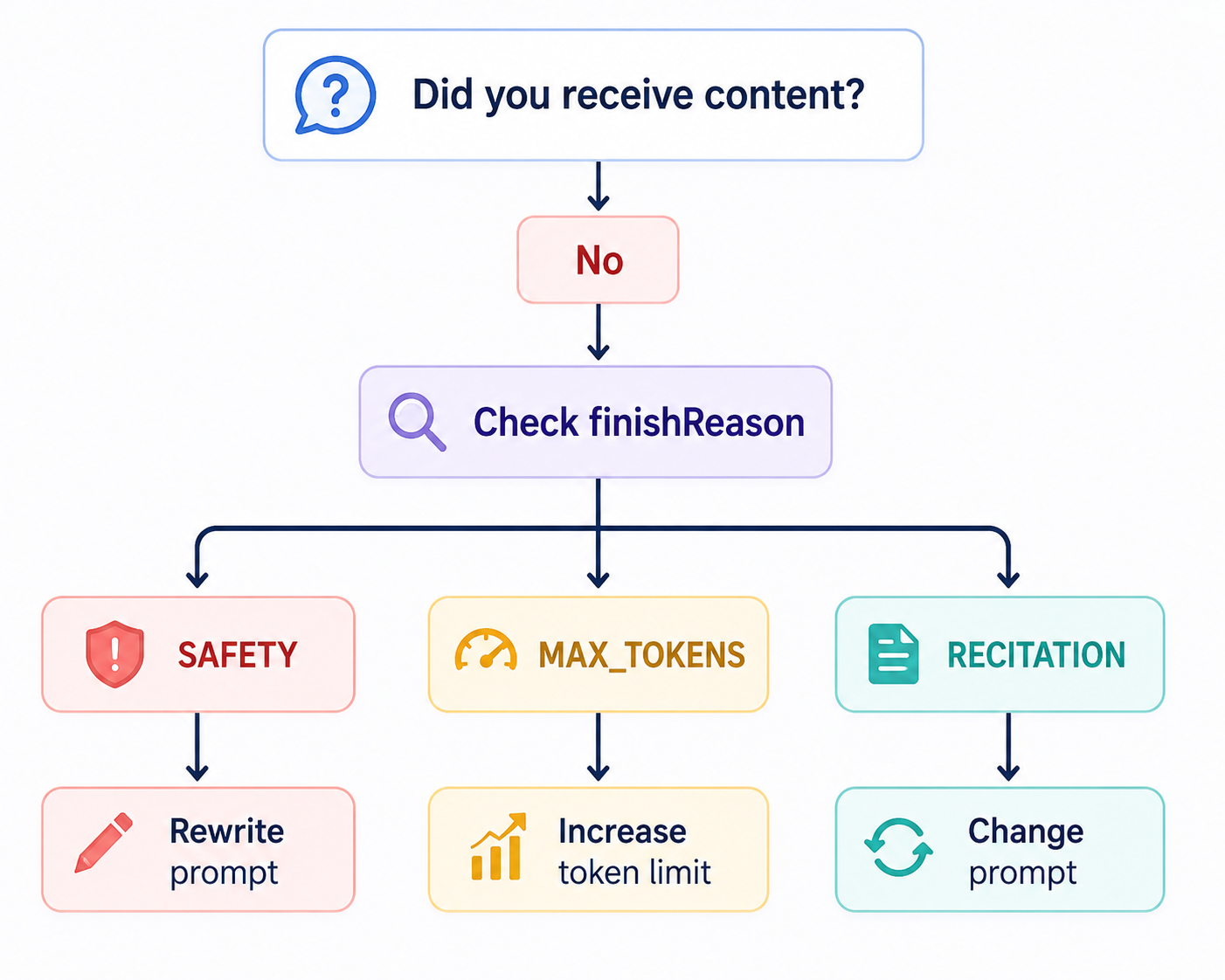
Inspect the raw JSON for these finish reasons:
- `SAFETY`: The prompt or intended output triggered a safety filter. Reword the prompt or review the safety settings available for the use case.
- `RECITATION`: The model detected that the intended answer may be too close to copyrighted or memorized source material and withheld it.
- `MAX_TOKENS`: The output limit was too small, so generation stopped before the model could provide a complete answer.
- Empty `candidates` array: The input may have been blocked before generation began, or another model-specific restriction may have prevented a candidate from being returned.
Your application should verify the presence of generated content and inspect finishReason. Checking only the HTTP status can cause the code to treat an unusable response as a successful result.
#Why a Gemini Key Works in Google AI Studio but Fails in Your Application
Google AI Studio is a controlled environment designed specifically for Google's own AI services. It can hide configuration problems that become visible when the same key is used in a custom application.
#1. The Key Contains Hidden Whitespace
A copied key may contain a trailing space or newline. The value can look correct while the application sends an invalid credential.
In Node.js, you can remove surrounding whitespace before using the environment variable:
const apiKey = process.env.GEMINI_API_KEY?.trim();

if (!apiKey) {
  throw new Error("GEMINI_API_KEY is missing");
}#2. The Environment Variable Is Not Loading
The .env file may be in the wrong folder, loaded after the request code runs, or excluded from the production deployment. A hosting platform may also require the key to be added through its environment-variable dashboard rather than through a local file.
Temporarily confirm whether the variable exists at runtime without printing the full secret:
console.log(Boolean(process.env.GEMINI_API_KEY));Avoid logging the complete key in production logs.
#3. The Gemini API Is Disabled in the Project
AI Studio may handle required service configuration automatically, while a custom Google Cloud project may need the Generative Language API to be enabled explicitly.
Open Google Cloud Console, select the correct project, search for the Generative Language API, and confirm that the service is enabled.
#4. The Application Uses a Model the Project Cannot Access
The application may request a paid, restricted, preview, or retired model even though AI Studio is testing a different model. A Flash request can work while a Pro request fails with a permission or availability error.
Test the exact model ID used by the application rather than assuming all models behave identically.
#5. A Browser Frontend Is Exposing the Key or Hitting CORS Restrictions
Calling Gemini directly from production frontend JavaScript can expose the API key to every visitor. It may also trigger browser security or CORS restrictions.
A safer architecture sends the request through a backend or serverless function that stores the credential securely. The frontend communicates with your server, and the server communicates with the Gemini API.
Testing the key in a neutral request tool and then debugging the application separately helps isolate the problem. If the key works in the tester, focus on environment loading, request construction, deployment configuration, model access, and frontend architecture.
#How to Replace a Broken, Deleted, or Compromised Gemini API Key
When the credential itself is invalid or exposed, create a replacement in a controlled order.
- Sign in to Google AI Studio.
- Open Get API Key.
- Identify the old credential and the project that owns it.
- Delete or revoke the compromised key.
- Select Create API Key.
- Choose the correct Google Cloud project.
- Copy the new credential immediately.
- Test it with one small request before deploying it.
- Update the secret in every environment that uses it.
- Restart or redeploy the application if the platform does not reload secrets automatically.
Deleting an unused or compromised key is good security hygiene. Leaving old credentials active increases the chance of unauthorized usage, especially in team projects where multiple people can modify Google Cloud settings.
If new keys repeatedly stop working, investigate the underlying cause:
- Search the Git history for exposed key patterns, not only the latest files.
- Check CI logs, screenshots, exported requests, and shared documents.
- Confirm whether another team member rotated or deleted project credentials.
- Review project-level quotas and billing limits.
- Check whether failures happen around the same quota-reset window. Some daily free-tier limits reset according to Pacific Time rather than the user's local timezone.
Creating another key without fixing the leak, quota issue, or project configuration will reproduce the same failure.
#How to Test All Gemini Models With the Same API Key
A Gemini API key is normally associated with a Google Cloud project rather than one specific Gemini model. You usually do not need to generate a new key when switching from Flash to Flash-Lite, Pro, or another supported model.
Keep the key and basic request configuration consistent, then change the model ID. This controlled approach helps you separate credential problems from model-specific problems.
Updated July 25, 2026: Google regularly launches, renames, previews, deprecates, and retires Gemini models. Confirm every model ID through Google's Models API or current official documentation before using it in production.
#Current General-Purpose Gemini Models
The following table reflects the model information included in this guide. Prices are standard paid-tier prices in U.S. dollars. Free-tier access can vary by model, project, region, account status, and current Google policy.
| Model | API model ID | Best use | Free tier | Standard paid input | Standard paid output | Status or important note |
|---|---|---|---|---|---|---|
| Gemini 3.6 Flash | gemini-3.6-flash | First validation test, coding, knowledge work, multimodal requests, chatbots, automation, and production applications | Yes | $1.50 / 1M tokens | $7.50 / 1M tokens | Current GA Flash model |
| Gemini 3.5 Flash | gemini-3.5-flash | Fast and intelligent general-purpose tasks | Yes | $1.50 / 1M tokens | $9.00 / 1M tokens | Current GA model |
| Gemini 3.5 Flash-Lite | gemini-3.5-flash-lite | Classification, extraction, translation, summarization, simple chatbots, and high-volume cost-efficient processing | Yes | $0.30 / 1M tokens | $2.50 / 1M tokens | Current GA Flash-Lite model |
| Gemini 3.1 Flash-Lite | gemini-3.1-flash-lite | Translation and simple data processing | Yes | $0.25 / 1M text, image, or video tokens | $1.50 / 1M tokens | Scheduled replacement: Gemini 3.5 Flash-Lite |
| Gemini 3.1 Pro Preview | gemini-3.1-pro-preview | Advanced reasoning, difficult coding, data synthesis, agents, and multimodal analysis | No | $2.00 / 1M tokens up to 200K input | $12.00 / 1M tokens up to 200K input | Preview; paid access required |
| Gemini 3 Flash Preview | gemini-3-flash-preview | Preview testing for fast multimodal generation | Yes | $0.50 / 1M text, image, or video tokens | $3.00 / 1M tokens | Google recommends Gemini 3.6 Flash as the replacement |
| Gemini 2.5 Pro | gemini-2.5-pro | Complex reasoning and coding | Yes | $1.25 / 1M tokens up to 200K input | $10.00 / 1M tokens up to 200K input | Scheduled shutdown: October 16, 2026 |
| Gemini 2.5 Flash | gemini-2.5-flash | Fast hybrid reasoning and long-context tests | Yes | $0.30 / 1M text, image, or video tokens | $2.50 / 1M tokens | Scheduled shutdown: October 16, 2026 |
| Gemini 2.5 Flash-Lite | gemini-2.5-flash-lite | Low-cost, high-volume API requests | Yes | $0.10 / 1M text, image, or video tokens | $0.40 / 1M tokens | Scheduled shutdown: October 16, 2026 |
#Specialized Gemini Models and Tier Availability
Specialized models can use the same Google project and credential, but they may require a different endpoint, action, request body, media format, or billing tier. A standard text-generation template is not guaranteed to work with every capability.
| Model | API model ID | Primary capability | Free tier | Paid-tier pricing summary |
|---|---|---|---|---|
| Gemini 3.5 Live Translate Preview | gemini-3.5-live-translate-preview | Real-time speech translation | Yes | $3.50 input and $21.00 output per 1M audio tokens |
| Gemini Omni Flash Preview | gemini-omni-flash-preview | Video generation and editing | No | $1.50 input; $9.00 text output or $17.50 video output per 1M tokens |
| Gemini 3.1 Flash Live Preview | gemini-3.1-flash-live-preview | Low-latency, real-time multimodal conversations | Yes | Text input $0.75; audio input $3.00; text output $4.50; audio output $12.00 per 1M tokens |
| Gemini 3.1 Flash Image | gemini-3.1-flash-image | Image generation and editing | No | $0.50 text or image input; image output starts around $0.045 per 0.5K image |
| Gemini 3 Pro Image | gemini-3-pro-image | Higher-quality native image generation | No | $2.00 text or image input; image output starts around $0.134 per 1K or 2K image |
| Gemini 3.1 Flash TTS Preview | gemini-3.1-flash-tts-preview | Text-to-speech | Yes | $1.00 text input and $20.00 audio output per 1M tokens |
| Gemini 2.5 Flash Native Audio Preview | gemini-2.5-flash-native-audio-preview-12-2025 | Live native-audio conversations | Yes | Text input $0.50; audio or video input $3.00; text output $2.00; audio output $12.00 per 1M tokens |
| Gemini 2.5 Flash Image | gemini-2.5-flash-image | Fast image generation | No | $0.30 text or image input; approximately $0.039 per 1024×1024 image |
| Gemini 2.5 Flash TTS Preview | gemini-2.5-flash-preview-tts | Low-latency text-to-speech | Yes | $0.50 text input and $10.00 audio output per 1M tokens |
| Gemini 2.5 Pro TTS Preview | gemini-2.5-pro-preview-tts | Higher-quality text-to-speech | No | $1.00 text input and $20.00 audio output per 1M tokens |
| Gemini Embedding 2 | gemini-embedding-2 | Multimodal embeddings | Yes | Text input $0.20 / 1M tokens; separate image, audio, and video pricing |
| Gemini Embedding | gemini-embedding-001 | Text embeddings | Yes | $0.15 / 1M input tokens |
| Gemini Robotics-ER 1.6 Preview | gemini-robotics-er-1.6-preview | Embodied reasoning for robotics | Yes | $1.00 text, image, or video input and $5.00 output per 1M tokens |
| Gemini 2.5 Computer Use Preview | gemini-2.5-computer-use-preview-10-2025 | Browser-control agents | No | Starts at $1.25 input and $10.00 output per 1M tokens |
Gemini 3 Deep Think is a specialized reasoning option for difficult mathematics, science, research, engineering, and advanced problem-solving. Its availability is considerably more limited than normal high-volume API models and may be restricted to Google AI Ultra users or selected API partners.
#Fastest Model-Switching Workflow
- Open the prepared Gemini request.
- Add the API key to the credential field.
- Send the first request with
gemini-3.6-flash. - Confirm that generated content is returned successfully.
- Keep the prompt, key, method, headers, and compatible JSON structure unchanged.
- Replace only the model ID with another supported model.
- Send the request again.
- Compare the status code, latency, output quality, token usage, response structure, and finish reason.
- When an error appears, determine whether it is related to model access, billing, quota, endpoint, modality, or request schema.
The main principle is simple: establish a working baseline, then change one variable at a time.
#Recommended Testing Order
| Test order | Model | Purpose |
|---|---|---|
| 1 | gemini-3.6-flash | Confirm that the key and basic generateContent request work |
| 2 | gemini-3.5-flash-lite | Confirm access to a lower-cost GA model |
| 3 | gemini-3.5-flash | Compare quality and response behavior with Flash-Lite |
| 4 | gemini-3.1-pro-preview | Check paid-tier and preview-model access |
| 5 | gemini-2.5-pro | Test compatibility before its scheduled retirement |
| 6 | Specialized models | Validate the correct endpoint, modality, media type, and request schema |
#Do Not Use Gemini 2.0 Flash as the Default Test Model
Gemini 2.0 Flash was once a practical model for validating a new key because it was fast, inexpensive, and broadly available. However, the guide records that Google shut down the following model IDs on June 1, 2026:
gemini-2.0-flashgemini-2.0-flash-001gemini-2.0-flash-litegemini-2.0-flash-lite-001
A request to one of those retired models can fail even when the API key is completely valid.
Use the current replacement shown in this guide:
Old model:         gemini-2.0-flash
Recommended model: gemini-3.6-flash
For a clear first test, send a prompt such as:
Reply with Gemini API key workingA 200 OK response with generated text confirms that the key is accepted, the project can access the Gemini API, the endpoint and method are correct, the selected model is available, and the request body is valid.
#Replace Legacy Gemini 1.5 Pro References
Gemini 1.5 Pro is a legacy model name and should not be the default choice in a new API-key testing tutorial.
The guide identifies these newer Pro options:
gemini-3.1-pro-previewgemini-2.5-pro, which is scheduled for shutdown on October 16, 2026
For a controlled Flash-to-Pro test, change only the model ID:
From: gemini-3.6-flash
To:   gemini-3.1-pro-preview
Keep the same API key, HTTP method, compatible base endpoint, prompt, headers, and basic text-generation body. If the Flash request works but the Pro request fails, investigate paid-tier requirements, billing, quota, preview access, regional availability, and input restrictions rather than regenerating the key.
gemini-3.1-pro-preview is identified in this guide as requiring paid-tier access, so a free-tier key may work with Flash and still fail with that Pro model.
#Model-Specific Failure Patterns
| Symptom | Most likely explanation | Next action |
|---|---|---|
| Flash succeeds but Pro fails immediately | The Pro model is paid-only, restricted, unavailable in the region, or not enabled for the project | Enable billing and verify access to the exact current Pro model |
| A text model succeeds but an image or audio model fails | The specialized model needs another endpoint, action, MIME type, media input, or JSON schema | Start with a template designed for that capability |
| Multiple keys in the same project all receive quota errors | Quotas are applied to the project rather than independently to every key | Review project usage, limits, and billing instead of creating more keys |
A model copied from an older tutorial returns 404 | The ID is retired, renamed, or unavailable | Query the Models API and replace the old ID |
#How to List the Models Available to Your Project
The most reliable method is to query Google's Models API with the key:
GET https://generativelanguage.googleapis.com/v1beta/models?key=YOUR_GEMINI_API_KEYReview the returned models and look for the actions required by your use case, such as:
generateContentembedContent
This is safer than guessing model IDs because Google's model lineup changes frequently. After retrieving the list, test compatible models one at a time through the prepared request.
#PlaygroundAPI.com vs Postman: Which Tool Should You Use?
Postman is a powerful platform for full API development, shared collections, environments, mock servers, automated tests, and CI/CD integration. PlaygroundAPI.com is designed for a narrower job: quickly verifying an API key and inspecting the provider's real response.
The distinction is not that one tool is universally better. They solve different problems.
#The Setup Problem With General-Purpose API Clients
A blank API client assumes that you already know:
- The correct endpoint.
- The HTTP method.
- The authentication format.
- The required headers.
- The expected JSON structure.
- The correct model ID.
- The fields supported by that model.
For a new user, one incorrect field can create a false negative. The key may be valid, but the malformed request makes it appear broken.
A manual Postman workflow can involve the following steps:
- Download or open Postman.
- Sign in.
- Select or create a workspace.
- Create a collection.
- Add a request.
- Set the HTTP method.
- Enter the Gemini endpoint.
- Configure authentication and headers.
- Build the JSON body.
- Add the model and API key.
- Send the request and inspect the result.
A prepared Gemini template removes request-construction work so that the credential becomes the primary variable under test.
#What PlaygroundAPI.com Does Differently
#Pre-Built Provider Templates
Templates for Gemini, OpenAI, Claude, and other APIs can provide the expected endpoint, headers, and request structure in advance. This reduces documentation lookup and avoids errors such as a missing contents wrapper.
#Browser-First Access
The tester runs through a browser rather than requiring a desktop installation. The same workflow is available from a laptop, phone, or tablet.
#No Mandatory Account Flow
The described testing path does not require account creation, email verification, workspace setup, or a trial before sending a basic request.
#Raw, Unfiltered Responses
The tool displays the provider's actual JSON rather than replacing it with a simplified summary. This allows you to inspect token counts, finish reasons, safety data, model information, and detailed errors.
#Multi-Model and Multi-Provider Testing
The same interface pattern can be used to compare models and providers without rebuilding the entire request workflow for every test.
#Temporary Credential Entry
The described browser workflow does not store the key in a PlaygroundAPI.com account or workspace. That is different from tools that save secrets as environment or workspace variables.
#Direct Comparison
| Capability | PlaygroundAPI.com | Postman |
|---|---|---|
| Account required for the described basic test | No | Generally yes for the full workspace experience |
| Typical setup for one prepared key test | Under 1 minute | Often 10–20 minutes for a new user configuring collections, environments, authentication, and body data |
| Mobile testing | Fully responsive browser workflow | No equivalent native mobile request-building flow described here |
| Gemini request template | Ready to use | Usually created or imported by the user |
| Installation | None for browser use | Desktop app or browser-based workspace |
| Credential persistence | Not stored in the described temporary test | Can be saved in an account, environment, or workspace |
| Response visibility | Raw provider response | Raw and formatted response tools |
| Best use | Fast validation, troubleshooting, first-time testing, and non-technical verification | Ongoing API development, team collaboration, automation, mocks, and complex collections |
#Why a Pre-Built Template Improves Accuracy
The advantage is not only speed. A correct template removes request-formatting mistakes from the test.
Suppose a user forgets the contents field, selects the wrong HTTP method, or writes an invalid body. The resulting error may look like a credential failure. Regenerating the key will not solve it because the request remains malformed.
When the endpoint, method, headers, and body are already correct, the test more accurately answers the original question: Does this API key work with this model?
#Who Commonly Uses a Fast API-Key Tester?
- Developers performing a sanity check before adding a credential to production code.
- Freelancers and agencies verifying a client's key before beginning work.
- Non-technical founders confirming that a delivered credential is valid.
- Students and hobbyists making their first Gemini, OpenAI, or Claude request.
- Support teams investigating an “API is not working” report without access to a full development environment.
- Clients testing a key from a phone before passing it to their technical team.
#When to Continue Using Postman
Postman remains the stronger choice when you need:
- Large collections containing many endpoints.
- Shared team workspaces and environments.
- Saved variables and reusable authentication.
- Mock servers.
- Automated test suites.
- CI/CD integration.
- A complete API-development lifecycle.
#When PlaygroundAPI.com Is the Better Fit
Use the faster browser workflow when you need to:
- Verify one key immediately.
- Avoid building a request from scratch.
- Test from a mobile device.
- Help a non-developer confirm a credential.
- View the raw provider response without opening a larger development workspace.
- Separate a key problem from an application problem before debugging code.
Many developers can reasonably use both tools: PlaygroundAPI.com for the initial gut check and Postman for ongoing API development.
#Security Checklist Before and After Testing
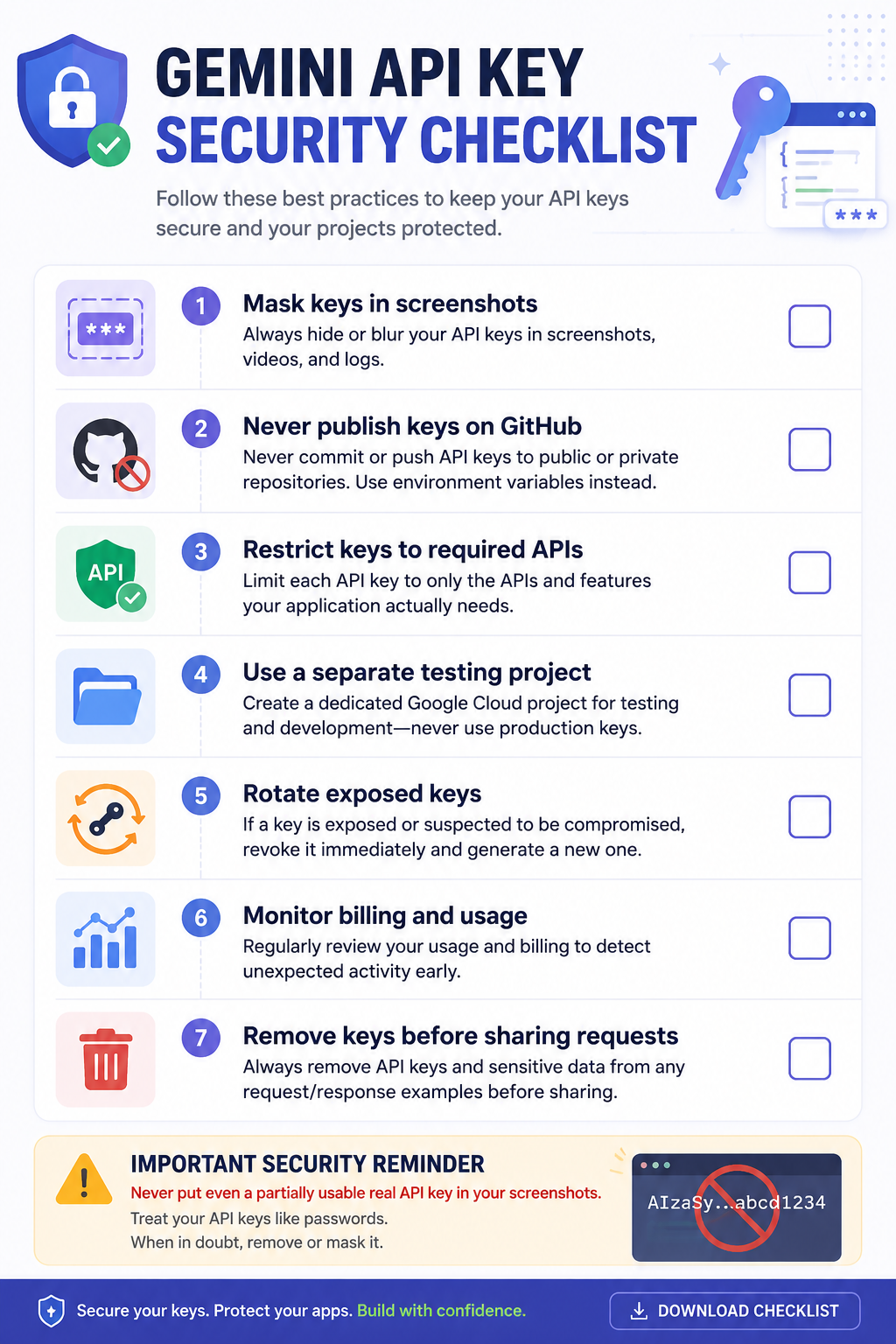
A successful request does not remove the need to secure the credential.
- Never publish a real API key in a blog post, video, screenshot, public URL, GitHub repository, or shared example.
- Use a dedicated Google Cloud project for development and testing when possible.
- Restrict the key to the required APIs.
- Add suitable application restrictions, such as approved IPs or referrers, when the architecture supports them.
- Do not expose a production key in frontend browser code.
- Remove or mask the key before sharing, exporting, or recording a request.
- Rotate the credential immediately after confirmed or suspected public exposure.
- Monitor usage and billing for unexpected requests.
- Keep development, staging, and production credentials separate.
- Delete credentials that are no longer used.
The safest testing sequence is to validate a dedicated development key with a current, free-tier-compatible model, then test additional models one at a time.
#Official Gemini API Resources
Use Google's current documentation to verify model IDs, prices, quotas, and retirement dates:
- Gemini API models
- Gemini Developer API pricing
- Gemini API deprecations
- Gemini API rate limits
- Gemini Models API reference
#Test Your Gemini API Key Now
You now know how to create a key, secure it, send a live request, recognize a valid response, interpret errors, diagnose empty output, and compare model access.
Open PlaygroundAPI.com, select the Gemini template, paste a development key, choose a current model, enter a simple prompt, and send the request.
From the returned JSON, you can confirm:
- Whether Google accepts the credential.
- Whether the project can access the selected model.
- Whether the request structure is valid.
- Whether the response completed normally.
- How many tokens were processed.
- Whether a quota, permission, safety, or model issue needs attention.
The complete check can be performed from a desktop or mobile browser without writing a line of code.
[Test a Gemini API key on PlaygroundAPI.com](https://playgroundapi.com)
#Related Guides
- [How to Test an API in Under 5 Seconds](/blog/how-to-test-api-in-under-5-seconds) — The same zero-install, browser-first approach that works for Gemini works for any REST API. This beginner guide covers the whole workflow in under five seconds.
- [Best Postman Alternative for Developers](/blog/best-postman-alternative-for-developers) — Thinking about ditching Postman? See how API Playground compares to Postman, Bruno, Insomnia, and other popular clients for everyday API testing tasks.
- [AI Agent API Testing Guide](/blog/ai-agent-api-testing-guide) — Go beyond manual testing. The built-in GPT-4o AI Agent can auto-build requests, diagnose errors from AI model APIs, and run multi-step flows without you writing a single line of code.
- [How to Debug a Broken API Response in 3 Steps](/blog/how-to-debug-a-broken-api-response-in-3-steps) — When a Gemini request returns an unexpected error, this systematic three-step debugging guide helps you isolate whether the issue is your key, the model, the request body, or the quota.